Hi guys! Stop using only horizontal or vertical text, instead follow this tutorial to wrap text along a custom shape. This will make it curve along the path to produce an interesting design. You can use this technique , for example, to create logos or decorative writings.
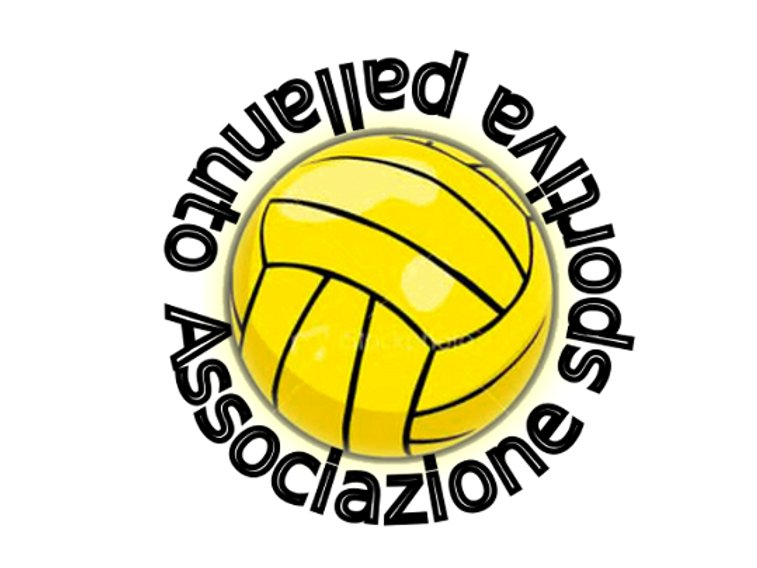
In this tutorial I will show you how to create a circular text around a water polo ball.
First open the image of a ball:
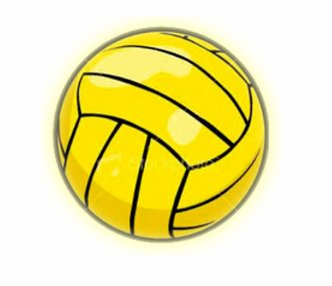
Select path tool, set a point around the ball and, keeping the left mouse button pressed, move lightly: you will get two dotted lines with two squares at the end. The line above will modify the path at the top of the ball, while the line below will modify the path at the bottom of the ball.
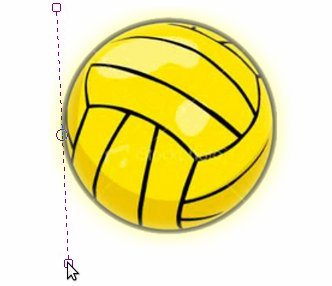
Click on the opposite side of the ball (keeping the left mouse button pressed to create the lines). Then click on a square and try to move it: the line will start moving. Use this method, moving both the lines, to create a semicircular line.
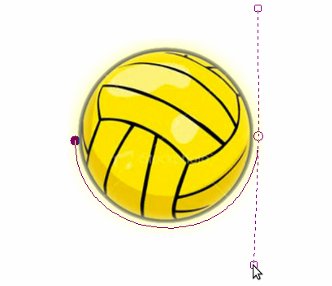
Create a new point near the first one, in order to complete the circle.
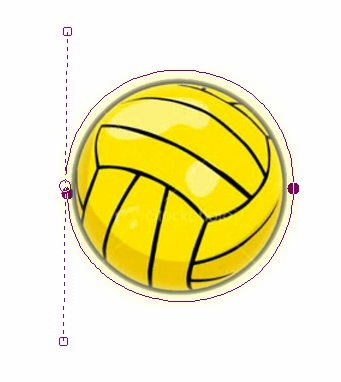
Select text tool: the path will disappear temporarily (you can see it in the path tab at the top right). Write the whole text on the same line; don’t worry if your writing is too long, it doesn’t matter.
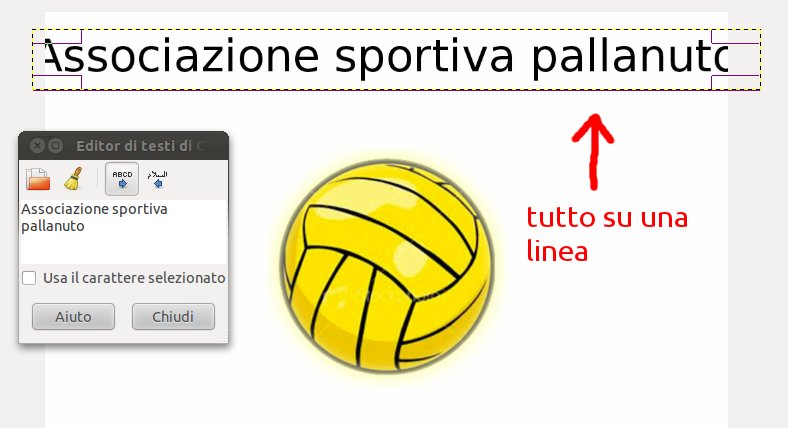
Click on “Text along path” at the bottom of text menu.
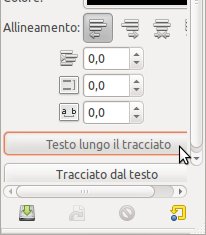
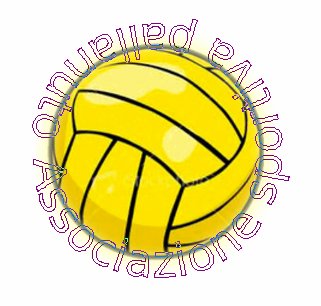
Your text will appear on the path drown previously!
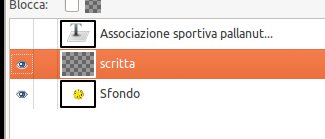
Define the contours of the writing by hiding the text layer, and creating a new one, call it “writing”.
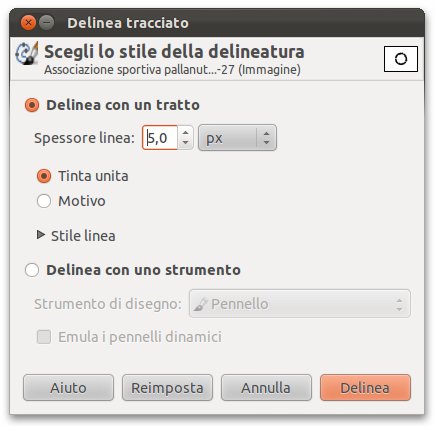
Modify—> Sketch path: default options are ok, you only have to adjust line thickness.
As you can see your text has become black, but there is extra green inside of it. Don’t worry, it is only a guide line (you can make it invisible in the path tab).
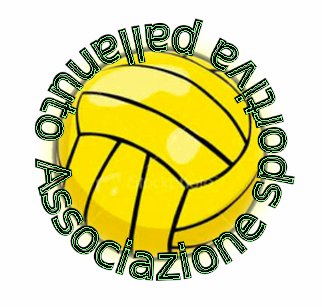
This will be the final outcome: